Proxmox Pulse
 Running SteamOS on Proxmox: GPU Passthrough Gaming VM
Learn how to run SteamOS as a KVM VM on Proxmox with GPU passthrough so one box handles both gaming and homelab workloads simultaneously.
 Proxmox Pulse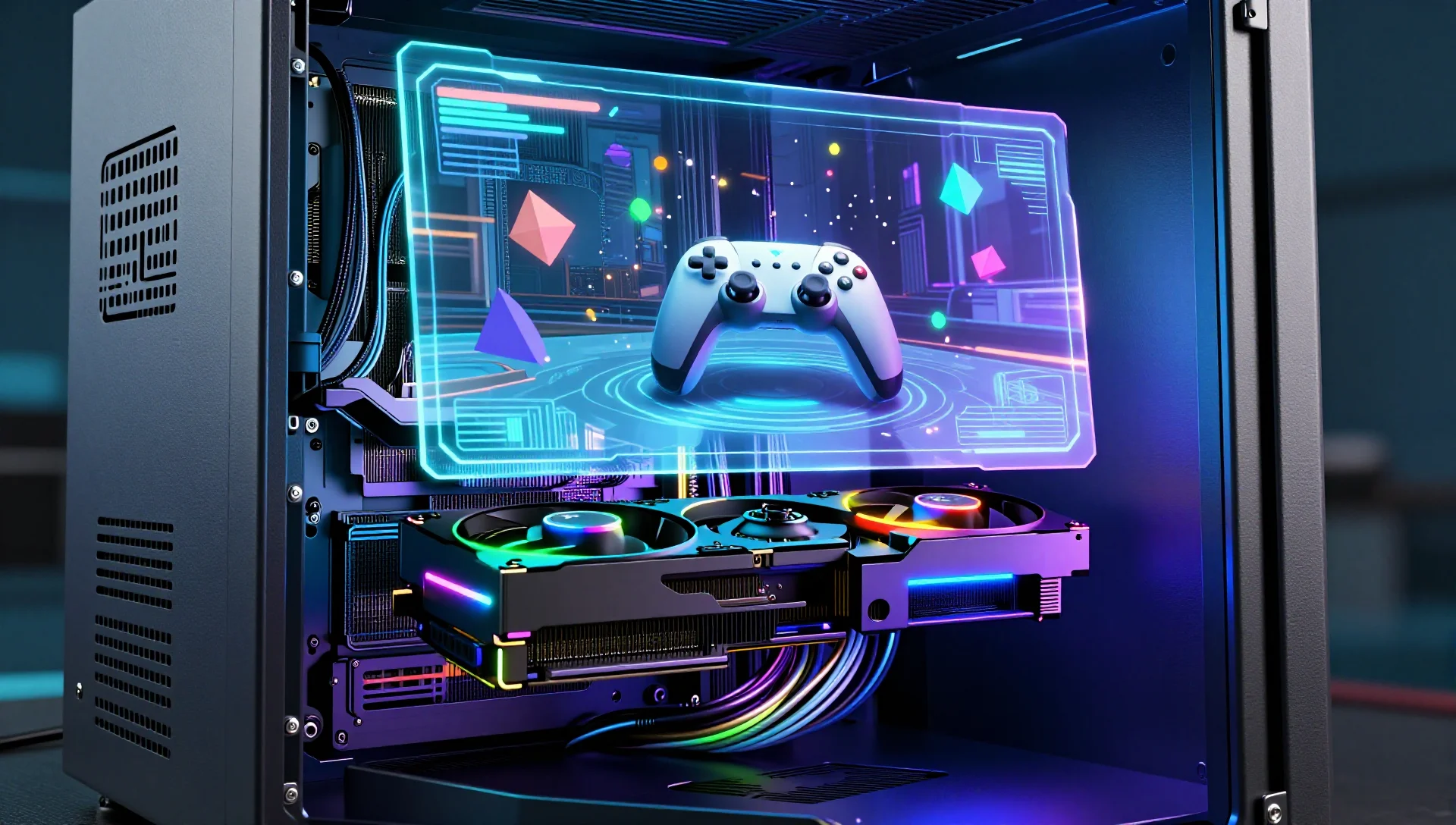
On this page
If you've ever wanted a single machine that runs your entire homelab stack and doubles as a gaming rig, Proxmox with SteamOS in a KVM VM is the answer. With GPU passthrough, the guest gets near-bare-metal graphics performance, and the rest of your VMs and containers keep humming along on the host. This guide walks you through the whole setup — from IOMMU groups to launching Steam in Big Picture mode.
Why SteamOS on Proxmox?
Valve's SteamOS 3 (the Holo-ISO community build or the official Steam Deck recovery image) is a read-only, immutable Arch Linux base with the full Steam client and Proton baked in. Running it as a VM gives you:
- Isolation — your gaming environment is completely separate from your homelab workloads
- Snapshots — roll back a bad driver update in seconds
- Flexibility — pass the GPU to a different VM (Windows, another Linux distro) when you're not gaming
- Resource control — pin CPU cores and memory so other VMs aren't starved
The trade-off is complexity. GPU passthrough is not plug-and-play — you'll spend time with IOMMU groups, vBIOS dumps, and kernel parameters. Budget an afternoon.
Prerequisites
Before you start, make sure you have:
- Proxmox VE 8.x or later (8.3+ recommended)
- A CPU with IOMMU support: Intel VT-d or AMD-Vi enabled in UEFI
- A discrete GPU to pass through (NVIDIA, AMD, or Intel Arc all work; AMD tends to be least painful)
- A second GPU or iGPU for the Proxmox host console (critical — you can't pass through your only display adapter)
- At least 16 GB RAM and a fast NVMe drive for the VM
- A USB controller to pass through for keyboard, mouse, and controllers
Enable IOMMU in UEFI and Grub
Log into your Proxmox node and edit the Grub command line:
nano /etc/default/grub
For Intel CPUs, change the GRUB_CMDLINE_LINUX_DEFAULT line to:
GRUB_CMDLINE_LINUX_DEFAULT="quiet intel_iommu=on iommu=pt"
For AMD CPUs:
GRUB_CMDLINE_LINUX_DEFAULT="quiet amd_iommu=on iommu=pt"
The iommu=pt flag (pass-through mode) reduces overhead for devices not being passed through and avoids issues with devices that don't support IOMMU.
Apply and reboot:
bash update-grub reboot
After reboot, verify IOMMU is active:
bash dmesg | grep -e DMAR -e IOMMU
You should see lines like DMAR: IOMMU enabled or AMD-Vi: AMD IOMMUv2 loaded.
Check IOMMU Groups
GPU passthrough requires that your GPU (and all devices in the same IOMMU group) be passable together. Run this script to inspect your groups:
for d in /sys/kernel/iommu_groups/*/devices/*; do
  n=${d#*/iommu_groups/*}; n=${n%%/*}
  printf 'IOMMU Group %s ' "$n"
  lspci -nns "${d##*/}"
done
Find your GPU in the output. Ideally it sits alone in its group, or with only its HDMI audio device. If it shares a group with other critical devices (NVMe, USB controller), you may need the ACS override patch — but that's outside the scope of this guide and carries stability risk.
Note the PCI IDs of all devices in your GPU's group. You'll need them shortly. Example output:
IOMMU Group 14 0000:03:00.0 VGA compatible controller [0300]: Advanced Micro Devices [1002:73bf] IOMMU Group 14 0000:03:00.1 Audio device [0403]: Advanced Micro Devices [1002:ab28]
Load VFIO Kernel Modules
VFIO is the kernel framework that enables device passthrough. Add the required modules:
echo -e 'vfio\nvfio_iommu_type1\nvfio_pci\nvfio_virqfd' >> /etc/modules
On newer kernels (6.2+), vfio_virqfd is built into vfio — skip it if you see a warning.
Next, tell VFIO to claim your GPU before the native driver loads. Create a config file with your GPU's PCI IDs:
nano /etc/modprobe.d/vfio.conf
Add (using your actual IDs from the IOMMU group scan):
options vfio-pci ids=1002:73bf,1002:ab28
Blacklist the native driver so it doesn't grab the GPU first:
echo 'blacklist amdgpu' >> /etc/modprobe.d/blacklist.conf
# or for NVIDIA:
# echo 'blacklist nouveau' >> /etc/modprobe.d/blacklist.conf
# echo 'blacklist nvidia' >> /etc/modprobe.d/blacklist.conf
Update initramfs and reboot:
update-initramfs -u -k all
reboot
Verify VFIO claimed the device:
lspci -nnk -d 1002:73bf
The Kernel driver in use line should read vfio-pci.
Download SteamOS
The official path is the Steam Deck recovery image, which Valve provides as a raw disk image. As of early 2026, the community-maintained HoloISO has been deprecated in favor of the official steamdeck-recovery.img.bz2.
Download it on the Proxmox host:
cd /var/lib/vz/template/iso/
wget -O steamdeck-recovery.img.bz2 \
  'https://store.steampowered.com/steamos/download/?ver=reimage'
bunzip2 steamdeck-recovery.img.bz2
Convert the raw image to qcow2 for snapshotting support:
qemu-img convert -f raw -O qcow2 \
  steamdeck-recovery.img \
  /var/lib/vz/images/200/steamdeck-recovery.qcow2
Create the VM in Proxmox
In the Proxmox web UI, create a new VM (ID 200 in this example) with these settings:
General:
- Name:
steamos-gaming - Start at boot: disabled (you choose when to game)
OS:
- Do not use any media (we'll attach the disk manually)
- Guest OS type: Linux, kernel 6.x
System:
- Machine:
q35(required for PCIe passthrough) - BIOS:
OVMF (UEFI) - Add EFI Disk: yes (small, 1 MB is fine)
- TPM: optional, SteamOS doesn't require it
Disks:
- Delete the default scsi0 disk for now
- Storage bus: VirtIO SCSI
CPU:
- Type:
host(exposes all host CPU features to the guest) - Cores: 4–8 depending on your hardware
- Sockets: 1
- NUMA: enable if you have a multi-socket or Ryzen system
Memory:
- 8–16 GB
- Ballooning: disable for gaming VMs (prevents stutters)
Network:
- Model: VirtIO
- Bridge: vmbr0
After creating the VM, attach the converted disk via the shell:
qm importdisk 200 \
  /var/lib/vz/images/200/steamdeck-recovery.qcow2 \
  local-lvm --format qcow2
Then go to Hardware → Unused Disk and add it as scsi0. Set it as the boot device under Options → Boot Order.
Add PCI Device Passthrough
This is where the magic happens. In the Proxmox web UI, go to your VM → Hardware → Add → PCI Device.
Select your GPU from the dropdown. Enable these options:
- All Functions: on (passes GPU + its audio device in one shot)
- ROM-Bar: on
- PCI-Express: on (required for full PCIe bandwidth)
For NVIDIA GPUs, you'll likely also need to pass a vBIOS ROM to avoid the infamous Code 43 error. Dump it first:
# Find your GPU's ROM path
ls /sys/bus/pci/devices/0000:03:00.0/
cat /sys/bus/pci/devices/0000:03:00.0/rom > /tmp/gpu.rom
cp /tmp/gpu.rom /usr/share/kvm/
Then add romfile=gpu.rom to the hostpci line in the VM config:
nano /etc/pve/qemu-server/200.conf
hostpci0: 0000:03:00.0,allFunctions=1,pcie=1,romfile=gpu.rom
AMD GPUs generally don't need the ROM dump step — they reset cleanly without it.
Pass Through a USB Controller
For seamless keyboard, mouse, and controller input, pass through a USB controller rather than individual USB devices. This avoids needing to re-add devices every time you plug something in.
Add another PCI device: Hardware → Add → PCI Device, select your USB controller (look for USB controller entries in the list). Enable PCIe if it shows as a PCIe device.
Alternatively, pass individual USB devices under Hardware → Add → USB Device — useful if you only have one USB controller.
Boot and Install SteamOS
Start the VM and connect via the noVNC console in the Proxmox web UI for initial setup (you'll see output through the software renderer before the GPU takes over).
The Steam Deck recovery image boots into a live environment. Open a terminal and run the re-image script:
sudo steamos-reimage --confirmed
This installs SteamOS to the VM disk. The process takes 5–10 minutes. After reboot, SteamOS runs its OOBE setup — connect to your network and log in to Steam.
Once Steam launches, check that your passed-through GPU is recognized:
# In the SteamOS desktop terminal
glxinfo | grep renderer
You should see your AMD or NVIDIA GPU, not llvmpipe.
Performance Tuning
CPU Pinning
For gaming, pin the VM's vCPUs to physical cores to avoid scheduler overhead:
# Check your CPU topology
lscpu -e
Pin VM 200's vCPUs to cores 4-7 (adjust for your system)
qm set 200 --cpuunits 1024
Or edit the VM config directly:
cpu: host,flags=+pdpe1gb numa: 1 numad: 1
For hardcore latency reduction, look into isolcpus and taskset — but for most homelab gaming setups, the default scheduler is fine.
Huge Pages
Allocating memory from huge pages reduces TLB misses and can noticeably improve 1% lows in CPU-bound games:
# On the Proxmox host, reserve huge pages (8 GB = 4096 × 2 MB pages)
echo 4096 > /proc/sys/vm/nr_hugepages
Make it persistent
echo 'vm.nr_hugepages = 4096' >> /etc/sysctl.d/99-hugepages.conf
In the VM config, add:
hugepages: 1
Disk I/O
Use cache=none,aio=native for the VM disk for best I/O performance:
scsi0: local-lvm:vm-200-disk-0,cache=none,aio=native,discard=on
If you have a dedicated NVMe drive for gaming, consider passing it through directly as a PCI device for near-bare-metal storage speeds.
Switching the GPU Between VMs
One of the best parts of this setup: you can pass the GPU to a different VM when you're not gaming. To release it from the SteamOS VM:
- Shut down the SteamOS VM
- Remove the
hostpci0line from VM 200's config (or use the UI) - Add it to your Windows VM or wherever you need it
Script this with a simple shell wrapper if you switch frequently:
#!/bin/bash
# swap-gpu.sh — move GPU from VM 200 to VM 101
qm stop 200
sleep 5
qm set 200 --delete hostpci0
qm set 101 --hostpci0 '0000:03:00.0,allFunctions=1,pcie=1'
qm start 101
Some AMD GPUs support reset without a host reboot; NVIDIA cards have historically required a full reboot to reset the GPU between VM assignments, though the vendor-reset kernel module has improved this significantly.
Common Issues and Fixes
Black Screen After Boot
The GPU is attached but no signal appears on the connected monitor.
- Confirm
iommu=ptis set in Grub - Try adding
video=efifb:offto the Grub kernel line to disable the EFI framebuffer - For NVIDIA: ensure the vBIOS ROM is correctly dumped and referenced
- Check
dmesg | grep vfiofor errors
GPU Reset Bug (NVIDIA)
NVIDIA consumer GPUs (GTX/RTX series) historically fail to reset between VM starts, hanging the host on the second boot. Solutions:
- Install the
vendor-resetDKMS module - Use the
pcie_port_pm=off pcie_aspm=offkernel parameters - Upgrade to newer NVIDIA drivers (555+ series significantly improved this)
SteamOS Updates Break Passthrough
SteamOS's immutable base sometimes ships kernel updates that change how the GPU driver interacts with the VM. If an update breaks things:
# Roll back to previous SteamOS snapshot in Proxmox
# Or boot to the previous kernel from the GRUB menu
This is exactly why snapshots before updates are invaluable.
Audio Passthrough
If you want audio through an HDMI/DisplayPort monitor, ensure the GPU's HDMI audio device is included in the passthrough (covered by allFunctions=1). For USB headsets, pass the USB device directly.
Alternatively, configure a virtual audio device using PipeWire over a network socket — but HDMI audio via the passed GPU is the simplest path.
Conclusion
Running SteamOS in a Proxmox KVM VM with GPU passthrough is genuinely impressive when it works — near-bare-metal gaming performance alongside a fully functional homelab on the same hardware. The setup is involved, but once it's stable it's incredibly flexible: snapshot before updates, swap the GPU to a Windows VM for a game that needs it, or reclaim the GPU entirely for a compute workload.
The biggest hurdles are IOMMU group luck (AMD platforms generally fare better than Intel for clean GPU isolation) and the NVIDIA reset bug. If you're building a new homelab gaming server from scratch, an AMD GPU paired with a Ryzen CPU is the path of least resistance. For existing hardware, the troubleshooting steps above cover the vast majority of issues people run into.
With SteamOS's Proton compatibility layer getting better every month and Proxmox's passthrough support continuing to mature, this setup is more viable in 2026 than it's ever been.