Proxmox Pulse
 Access a Linux VM on Proxmox from Windows via RDP
Step-by-step guide to spinning up a Linux VM on Proxmox and connecting from Windows using RDP, SPICE, or noVNC for a near-native remote desktop experience.
 Proxmox Pulse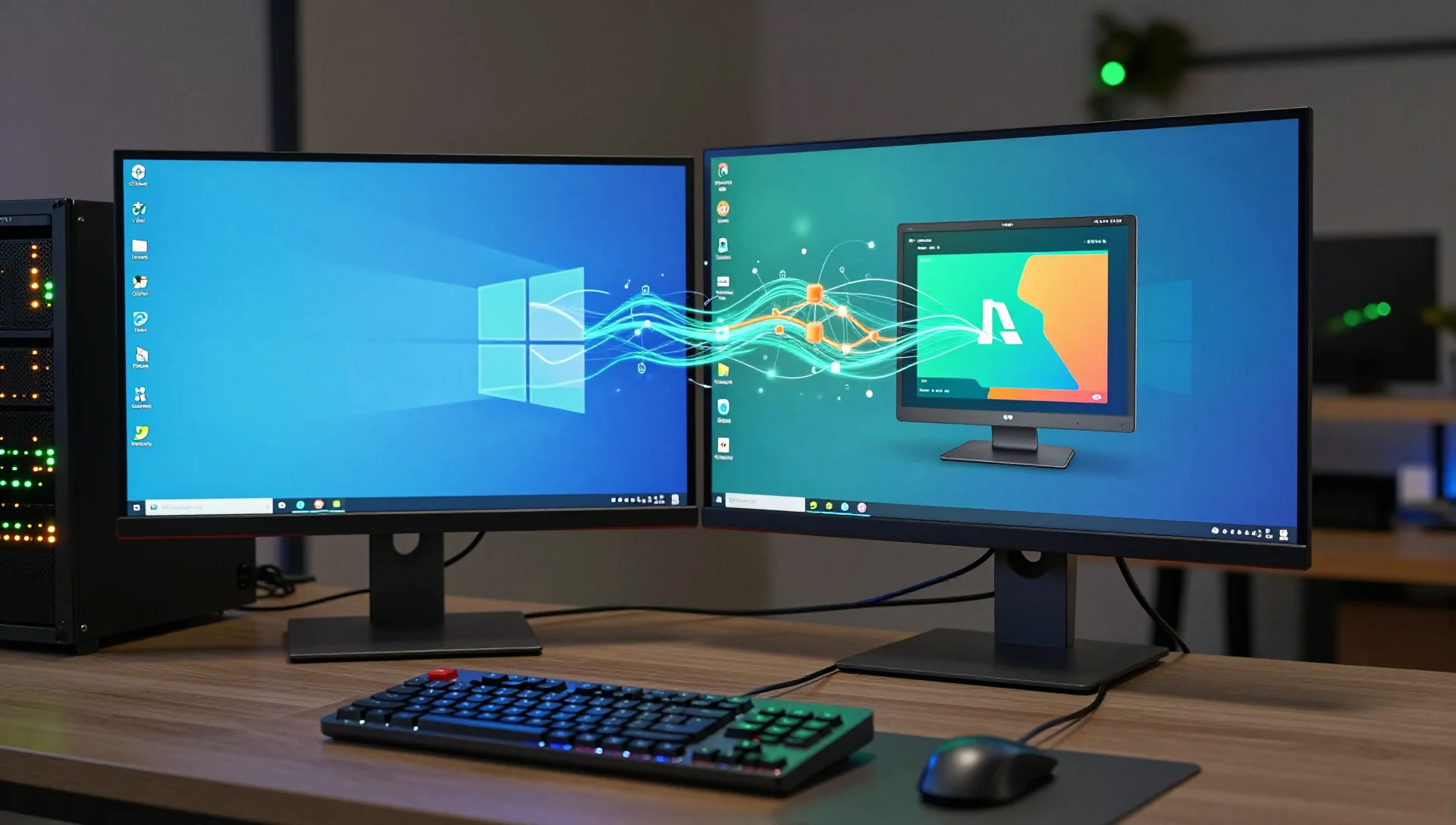
On this page
If you're running Proxmox in your homelab and want to access a Linux VM from a Windows machine without constantly jumping into the Proxmox web console, you have more options than you might think. Whether you need a full graphical desktop, a lightweight remote session, or just a quick way to get a terminal, this guide walks through three practical approaches: xRDP (true RDP protocol), SPICE via virt-viewer, and the built-in noVNC console. By the end, you'll have at least one method working and a clear picture of when to use each.
Why Not Just Use the Proxmox noVNC Console?
The built-in noVNC console in the Proxmox web UI is great for quick tasks — checking boot errors, running a one-off command, or fixing a VM that lost network access. But it has real limitations for daily use.
noVNC doesn't support clipboard paste from your Windows host (or makes it awkward), the keyboard mapping can be off, and performance degrades noticeably for anything graphically demanding. You also can't easily open multiple sessions or resize the resolution dynamically.
For a proper remote desktop experience, you want either xRDP or SPICE.
Method 1: xRDP — Full RDP from Windows to Linux
xRDP is the most practical option for most people. It implements the Microsoft RDP protocol on Linux, which means you can connect using the built-in Remote Desktop Connection app on Windows — no extra software needed on the client side.
Setting Up the Linux VM
This guide uses Ubuntu 24.04 LTS as the guest OS, but the steps are nearly identical for Debian, Linux Mint, or Pop!_OS.
First, make sure your VM has a desktop environment installed. If you did a minimal server install, add one:
# Ubuntu with GNOME (default)
sudo apt update && sudo apt install -y ubuntu-desktop
Or go lightweight with XFCE
sudo apt update && sudo apt install -y xfce4 xfce4-goodies
Then install xRDP:
sudo apt install -y xrdp
sudo systemctl enable xrdp
sudo systemctl start xrdp
Verify it's running:
sudo systemctl status xrdp
Fix the Black Screen Issue
This is the most common problem with xRDP on Ubuntu. After connecting, you get a black screen instead of a desktop. The fix depends on your desktop environment.
For GNOME on Ubuntu 22.04+, create a polkit rule to allow color management without a password prompt (which hangs the session):
sudo tee /etc/polkit-1/localauthority/50-local.d/45-allow-colord.pkla <<EOF
[Allow Colord all Users]
Identity=unix-user:*
Action=org.freedesktop.color-manager.create-device;org.freedesktop.color-manager.create-profile;org.freedesktop.color-manager.delete-device;org.freedesktop.color-manager.delete-profile;org.freedesktop.color-manager.modify-device;org.freedesktop.color-manager.modify-profile
ResultAny=no
ResultInactive=no
ResultActive=yes
EOF
For XFCE, create a .xsession file in your home directory:
bash echo 'startxfce4' > ~/.xsession chmod +x ~/.xsession
For GNOME with Ubuntu 22.04+, you may also need to set the desktop session in xRDP's startup script:
sudo sed -i 's/^test -x \/etc\/X11\/Xsession && exec \/etc\/X11\/Xsession/exec \/bin\/bash ~\/.xsession/' /etc/xrdp/startwm.sh
Alternatively, just configure xRDP to use the correct session manager by editing /etc/xrdp/xrdp.ini and setting use_vsock=false under [Globals] if you hit socket connection errors.
Allow RDP Through the Firewall
xRDP listens on port 3389 by default. Open it with UFW if you're using it:
sudo ufw allow 3389/tcp
sudo ufw reload
If you're using the Proxmox firewall at the VM level, go to Datacenter → VM → Firewall and add an ACCEPT rule for TCP port 3389.
Connect from Windows
- Note your Linux VM's IP address (
ip addr showor check the Proxmox summary tab) - Open Remote Desktop Connection on Windows (search for
mstscin the Start menu) - Enter the VM's IP address and click Connect
- Log in with your Linux username and password
You'll get a full desktop session. The clipboard works bidirectionally, you can resize the window, and performance is solid for normal desktop use.
RDP Session Tips
- Multiple sessions: xRDP creates a new session for each connection by default. If you want to reconnect to an existing session, use a dedicated xRDP session manager or configure
xrdp.inito usevncas the session type so you reconnect to the running display. - Resolution: Set a custom resolution in the xRDP login screen before connecting, or use Windows RDP's display settings to match your monitor.
- Audio: Install
pulseaudio-module-xrdpfor audio forwarding over RDP:
sudo apt install -y pulseaudio-module-xrdp
Method 2: SPICE — Lower Latency, Better Integration
SPICE (Simple Protocol for Independent Computing Environments) is a remote display protocol designed specifically for virtual machines. Proxmox has built-in SPICE support, and when combined with virt-viewer on Windows, you get better performance than VNC for graphical workloads, plus USB redirection and dynamic resolution.
Configure the VM for SPICE
In the Proxmox web UI, go to your VM's Hardware tab:
- Set the Display to
SPICE (qxl) - Optionally add a USB tablet device (under Add → USB Device) for better mouse tracking
You can also do this via CLI:
# Replace 101 with your VM ID
qm set 101 --vga qxl
For multi-monitor SPICE support, set the heads parameter:
qm set 101 --vga qxl,memory=64,heads=2
Install QXL Drivers in the Guest
On Ubuntu/Debian:
sudo apt install -y xserver-xorg-video-qxl spice-vdagent
sudo systemctl enable spice-vdagentd
sudo systemctl start spice-vdagentd
spice-vdagent is important — it enables clipboard sharing, dynamic resolution changes when you resize the viewer window, and drag-and-drop file transfers.
Connect from Windows with virt-viewer
Download and install virt-viewer for Windows from the official Fedora/Red Hat release page (search for "virt-viewer Windows download"). It's a small, free tool.
To get the SPICE connection details from Proxmox:
# On the Proxmox host
qm spiceproxy 101
This outputs a .vv file you can open directly with virt-viewer. Or, in the Proxmox web UI, click Console → SPICE and it will automatically download and open the connection file if virt-viewer is installed.
SPICE vs RDP: When to Use Which
| Feature | xRDP | SPICE |
|---|---|---|
| Windows client software | Built-in (mstsc) | Requires virt-viewer |
| Clipboard sharing | Yes | Yes (with spice-vdagent) |
| USB redirection | No | Yes |
| Dynamic resolution | Yes | Yes (with spice-vdagent) |
| Over the internet | Easy (port forward) | Needs tunnel or VPN |
| Performance (LAN) | Good | Better for graphics |
| Audio forwarding | With plugin | Built-in |
SPICE is better on a LAN where you control both ends. xRDP is more flexible for remote access over the internet since it just needs port 3389 forwarded, same as Windows RDP.
Method 3: noVNC with Quality Improvements
If you just want to use the Proxmox web console but make it more usable, a few tweaks help significantly.
Enable Clipboard in noVNC
The noVNC console has a hidden clipboard button. Click the small arrow on the left side of the console window to expand the noVNC toolbar. You'll see a clipboard icon — paste text there, then it becomes available inside the VM.
For clipboard to work properly in the other direction (copying from VM to browser), install xclip in the guest:
sudo apt install -y xclip
Boost noVNC Performance
In the VM's Hardware settings, change the display from the default std to virtio:
qm set 101 --vga virtio
VirtIO display significantly improves noVNC performance for desktop VMs. It's not as good as SPICE for heavy graphical use, but it's noticeably snappier for normal tasks.
Set a Fixed Console Resolution
Add a kernel parameter to the VM to force a specific resolution (useful when noVNC doesn't auto-resize):
# In the guest, edit GRUB
sudo nano /etc/default/grub
Change this line:
GRUB_CMDLINE_LINUX_DEFAULT="quiet splash"
To this (replace with your preferred resolution):
GRUB_CMDLINE_LINUX_DEFAULT="quiet splash video=1920x1080"
Apply
sudo update-grub sudo reboot
Securing Your Remote Access
Regardless of which method you use, don't expose RDP or SPICE directly to the internet without protection.
Use a VPN (Recommended)
Set up WireGuard or OpenVPN on Proxmox and access your VMs only through the VPN tunnel. This keeps port 3389 off the public internet entirely. Check out the Proxmox WireGuard VPN guide for a full walkthrough.
Restrict xRDP to Specific IPs
If you do need external access, restrict it with UFW:
# Only allow RDP from your specific IP
sudo ufw allow from 203.0.113.50 to any port 3389
sudo ufw deny 3389
Change the Default xRDP Port
Obscurity isn't security, but changing the port reduces noise from automated scanners:
sudo nano /etc/xrdp/xrdp.ini
# Change: port=3389
# To:     port=3390  (or any unused port)
sudo systemctl restart xrdp
Enable xRDP Logging
Monitor for brute-force attempts:
# xRDP logs are in syslog
sudo grep xrdp /var/log/syslog | tail -50
Or follow in real time
sudo journalctl -u xrdp -f
Consider setting up fail2ban with an xRDP filter if the VM is internet-facing.
Troubleshooting Common Issues
"Connection refused" when connecting to xRDP
Check that xRDP is running and listening:
sudo systemctl status xrdp
sudo ss -tlnp | grep 3389
If the port isn't listed, xRDP failed to start. Check logs:
sudo journalctl -u xrdp --no-pager -n 50
Black screen after login
This almost always comes down to the desktop session not starting. Try creating a simple .xsession file:
# For XFCE
echo 'startxfce4' > ~/.xsession
For GNOME
echo 'gnome-session' > ~/.xsession
chmod +x ~/.xsession
Then disconnect and reconnect.
Slow or laggy RDP performance
A few things to check:
- Make sure the VM's network interface is
VirtIO(not the default e1000) - Increase the VM's vCPU count if the desktop environment is CPU-heavy
- In Windows RDP client, reduce color depth to 16-bit under Show Options → Experience
- Switch to xRDP's
Xorgsession type instead ofX11rdpin the login screen dropdown
SPICE resolution doesn't change
The spice-vdagentd service must be running in the guest:
sudo systemctl status spice-vdagentd
sudo systemctl enable --now spice-vdagentd
If it's not installed:
sudo apt install -y spice-vdagent
Choosing the Right Approach for Your Use Case
Here's a quick decision guide:
- Daily desktop use from your local network → SPICE with virt-viewer. Best performance, clipboard, USB redirection.
- Remote access over the internet → xRDP through a WireGuard VPN. Familiar, secure, no extra client software.
- Quick admin tasks, headless server management → noVNC in the Proxmox web UI. No setup needed, always available.
- Shared VM that multiple Windows users access → xRDP with separate user accounts. Each user gets their own session.
- Graphical apps that need low latency → SPICE with QXL driver on a LAN.
Conclusion
Getting a smooth remote desktop experience from Windows to a Linux VM on Proxmox is straightforward once you pick the right tool. xRDP is the most practical option for most homelabs — it uses the same protocol as Windows Remote Desktop, works over the internet with minimal configuration, and gives you a proper multi-window desktop experience. SPICE is the better choice if you're on a LAN and want tighter integration with USB devices and dynamic resolution.
Whichever method you choose, pair it with a VPN like WireGuard and don't expose RDP ports directly to the internet. With that in place, your Linux VM is as accessible as any Windows machine on your network.